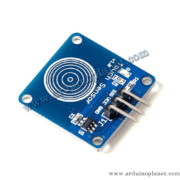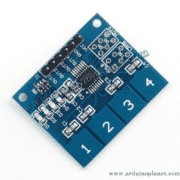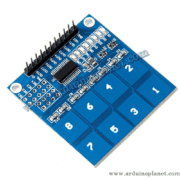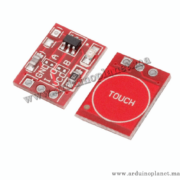
Description
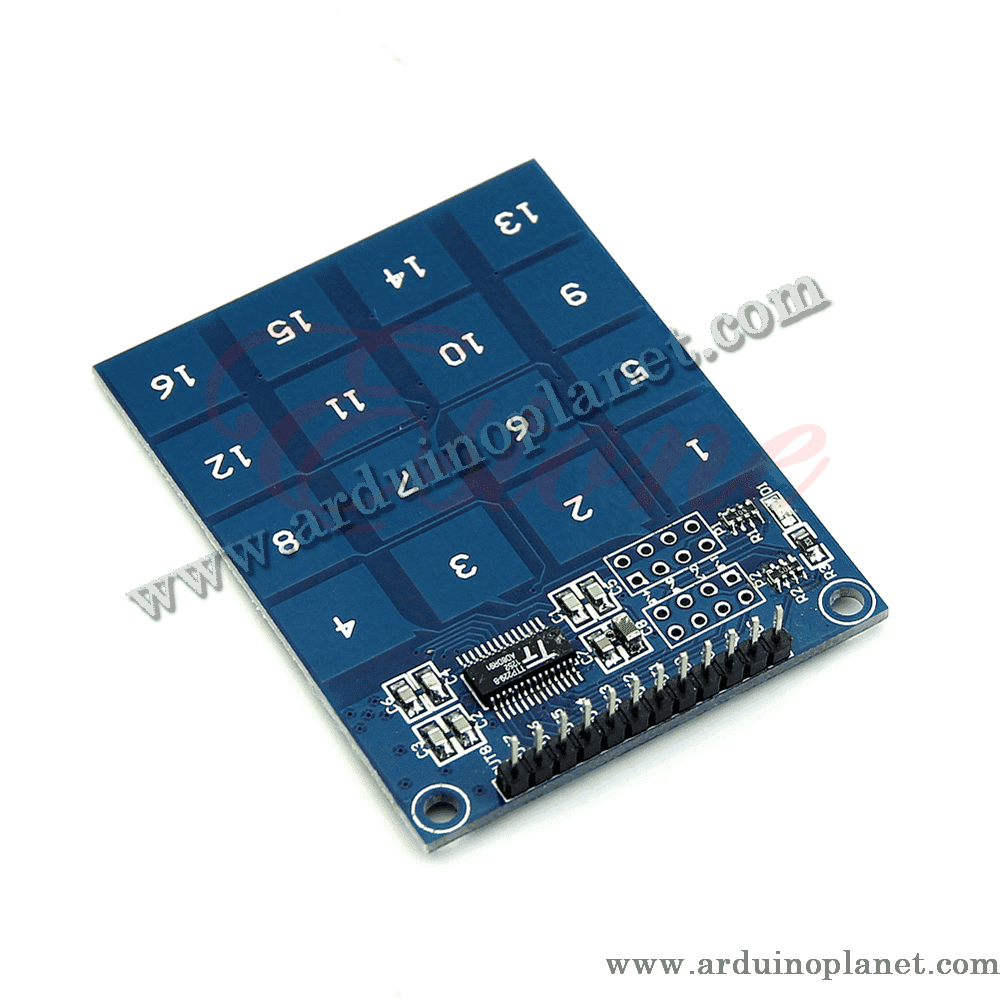
TTP229 16-Key Capacitive Touch Sensor Module
This capacitive touch module uses a TTP229 controller and is described as supporting up to 16 touch keys. It can replace mechanical buttons in electronic projects and user interfaces.
🔧 Listed specifications
- Supply voltage: 2–5.5 V DC as stated in this listing
- Touch inputs: configurable for 8-key or up to 16-key operation
- Output options: serial and direct outputs are listed; the available interface depends on the chip/module version and solder-pad configuration
- Board dimensions: 49.3 × 64.5 mm
- The listing also states 60 ms fast-mode and approximately 220 ms low-power response, with current of a few μA; verify these figures against the exact module documentation.
Variant/specification note: TTP229 versions differ. The manufacturer’s TTP229 information gives 2.4–5.5 V for some versions and identifies different serial interfaces (including I²C or TT SPI) alongside direct output. This listing does not specify the full suffix or board revision, so do not assume every interface, voltage limit, timing, or default setting applies to your module.
⚙️ How it works
Touch changes the capacitance at a sensing electrode. The controller detects the change and reports the corresponding key using the selected output mode.
💡 Applications
- Touch keypads and control panels
- Lighting controls
- User interfaces
- Interactive electronics projects
- Controls without mechanical buttons
📌 Listed connections
- VCC: supply (2–5.5 V as listed; confirm the chip variant)
- GND: ground
- SCL: serial clock, if applicable to this board/interface
- SDO: serial data output, if applicable
- OUT1–OUT8: direct digital outputs in the corresponding direct-output configuration
⚙️ Configuration options
The product listing describes solder-pad options for selecting 8-key or 16-key operation, single-key or multi-key behavior, and direct or serial output. The pad labels and their effect vary by TTP229 chip and module revision. Check the specific board schematic before changing jumpers.
🔌 Using it with an Arduino Uno
Connect power and ground within the verified rating. Wire the key outputs or serial interface according to the selected configuration and the board’s documentation. The example below is retained from the source listing; verify that its pin assignments match your module before using it.
Basic Arduino example
#define PAD1 2
#define PAD2 3
#define PAD3 4
#define PAD4 5
#define PAD5 6
#define PAD6 7
#define PAD7 8
#define PAD8 9

void setup() {
Serial.begin(9600);
pinMode(PAD1, INPUT);
pinMode(PAD2, INPUT);
pinMode(PAD3, INPUT);
pinMode(PAD4, INPUT);
pinMode(PAD5, INPUT);
pinMode(PAD6, INPUT);
pinMode(PAD7, INPUT);
pinMode(PAD8, INPUT);
}

void loop() {
if (digitalRead(PAD1) == HIGH) {
Serial.println("PAD1 touch detected");
}
if (digitalRead(PAD2) == HIGH) {
Serial.println("PAD2 touch detected");
}
if (digitalRead(PAD3) == HIGH) {
Serial.println("PAD3 touch detected");
}
if (digitalRead(PAD4) == HIGH) {
Serial.println("PAD4 touch detected");
}
if (digitalRead(PAD5) == HIGH) {
Serial.println("PAD5 touch detected");
}
if (digitalRead(PAD6) == HIGH) {
Serial.println("PAD6 touch detected");
}
if (digitalRead(PAD7) == HIGH) {
Serial.println("PAD7 touch detected");
}
if (digitalRead(PAD8) == HIGH) {
Serial.println("PAD8 touch detected");
}
delay(100);
}
This example reads the touch-key signals and reports detected keys in the Serial Monitor.
Advanced example with an I2C LCD
#include <Wire.h>
#include <LiquidCrystal_I2C.h>


LiquidCrystal_I2C lcd(0x27, 16, 2);
#define PAD1 2
#define PAD2 3
#define PAD3 4
#define PAD4 5
#define PAD5 6
#define PAD6 7
#define PAD7 8
#define PAD8 9


void setup() {
  lcd.begin();
  lcd.backlight();
  Serial.begin(9600);
  pinMode(PAD1, INPUT);
  pinMode(PAD2, INPUT);
  pinMode(PAD3, INPUT);
  pinMode(PAD4, INPUT);
  pinMode(PAD5, INPUT);
  pinMode(PAD6, INPUT);
  pinMode(PAD7, INPUT);
  pinMode(PAD8, INPUT);
}


void loop() {
  lcd.clear();
  if (digitalRead(PAD1) == HIGH) {
    lcd.print("PAD1 touch detected");
  }
  if (digitalRead(PAD2) == HIGH) {
    lcd.print("PAD2 touch detected");
  }
  if (digitalRead(PAD3) == HIGH) {
    lcd.print("PAD3 touch detected");
  }
  if (digitalRead(PAD4) == HIGH) {
    lcd.print("PAD4 touch detected");
  }
  if (digitalRead(PAD5) == HIGH) {
    lcd.print("PAD5 touch detected");
  }
  if (digitalRead(PAD6) == HIGH) {
    lcd.print("PAD6 touch detected");
  }
  if (digitalRead(PAD7) == HIGH) {
    lcd.print("PAD7 touch detected");
  }
  if (digitalRead(PAD8) == HIGH) {
    lcd.print("PAD8 touch detected");
  }
  delay(1000);
}
This example displays detected touch keys on an I2C LCD. Its wiring assumes the output mode and pins used in the original code.
Components for the advanced example
- Arduino Uno
- TTP229 capacitive touch module
- I2C 1602 LCD
- Connecting wires
Code overview
- Include libraries:
#include <Wire.h>and#include <LiquidCrystal_I2C.h>for the LCD. - Initialization: Initializes the display and configures the inputs shown in the example.
- Read and display: Reads the key states and displays them on the LCD.
Wiring and library setup
Use the pin mapping shown in the code only if it matches your module’s selected output mode. To use the I2C LCD, install the LiquidCrystal I2C library through Arduino IDE’s Library Manager: open Sketch → Include Library → Manage Libraries, search for “LiquidCrystal I2C”, and install it.
Disconnect power before changing solder pads or wiring. Check the chip suffix, board schematic, and logic levels before connecting the module to other equipment.