Description
4×4 Matrix Keypad, 16 Buttons
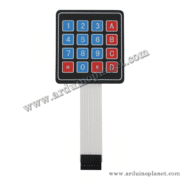
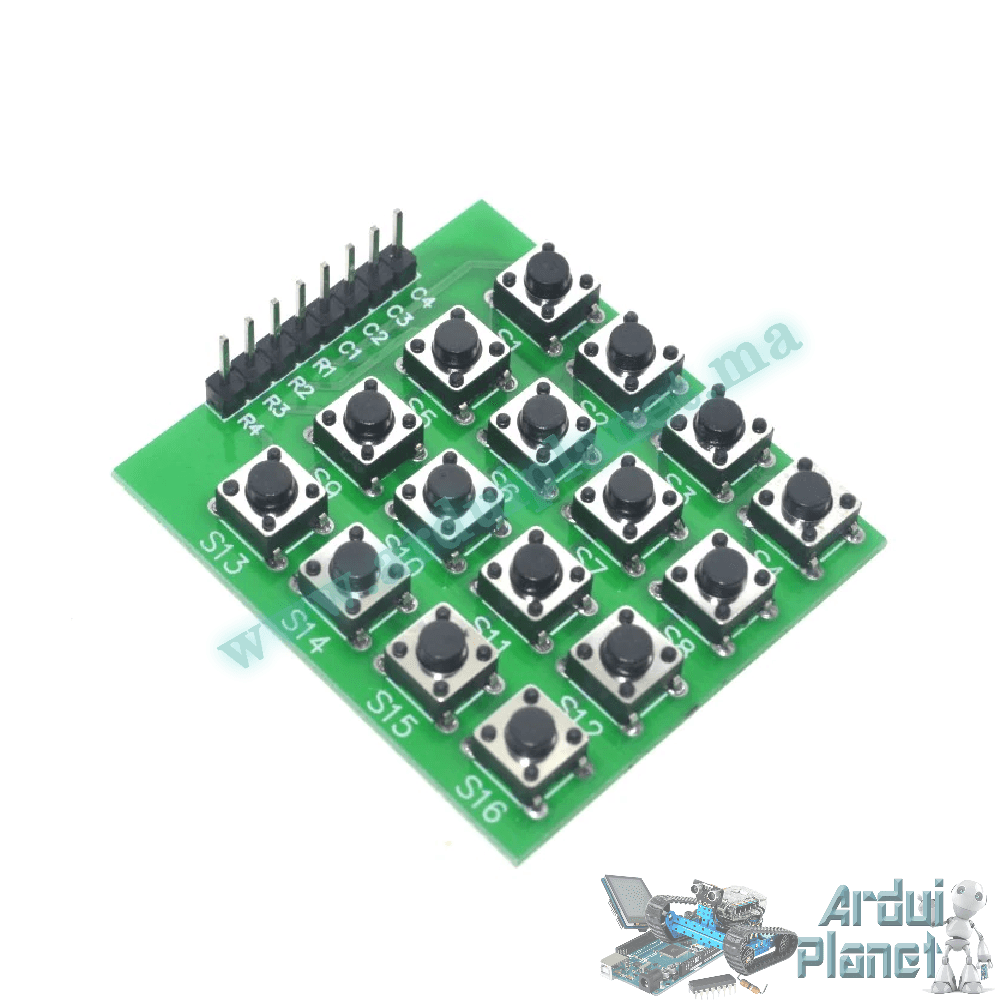
This membrane keypad has 16 buttons arranged in four rows and four columns. Pressing a key connects a row to a column, so a microcontroller can identify the key by scanning the matrix. It can provide input for access-control prototypes, automation and other electronics projects.
Listing specifications
- Layout: 4 rows × 4 columns
- Number of keys: 16
- Contact type: membrane
- Interface: 8 pins, four row lines and four column lines
- Dimensions stated in the listing: 70 × 77mm
- Operating voltage stated in the listing: 5V DC
- Key life stated in the listing: up to 1 million presses per key
Specifications are as stated by the seller. The keypad is a passive switch matrix; follow the controller board’s logic-level limits. The source example connects the eight lines to Arduino Uno digital pins 2 through 9.
Arduino Uno example
Install a compatible Keypad library in the Arduino IDE. This source example defines a 4×4 key map and prints each pressed key to the Serial Monitor at 9600 baud. The row and column pin assignments are set in the code.
#include <Keypad.h>

const byte ROWS = 4; // quatre lignes
const byte COLS = 4; // quatre colonnes
char keys[ROWS][COLS] = {
{'1','2','3','A'},
{'4','5','6','B'},
{'7','8','9','C'},
{'*','0','#','D'}
};

byte rowPins[ROWS] = {9, 8, 7, 6}; // Connecté aux pins des lignes du clavier
byte colPins[COLS] = {5, 4, 3, 2}; // Connecté aux pins des colonnes du clavier

Keypad clavier = Keypad(makeKeymap(keys), rowPins, colPins, ROWS, COLS);

void setup() {
Serial.begin(9600);
}

void loop() {
char key = clavier.getKey();
if (key) {
Serial.println(key);
}
}
Wiring used in the example
- Rows L1–L4: Arduino digital pins 9, 8, 7 and 6, respectively
- Columns C1–C4: Arduino digital pins 5, 4, 3 and 2, respectively
Confirm the row/column order for your keypad before wiring; connector order can vary. Adapt the pin arrays in the sketch if your wiring differs.
How the example works
The Keypad library scans the row and column lines and maps a detected switch closure to the matching character in the key array. The sketch then prints that character over the serial connection.