Description
Arduino Speed Sensor Module
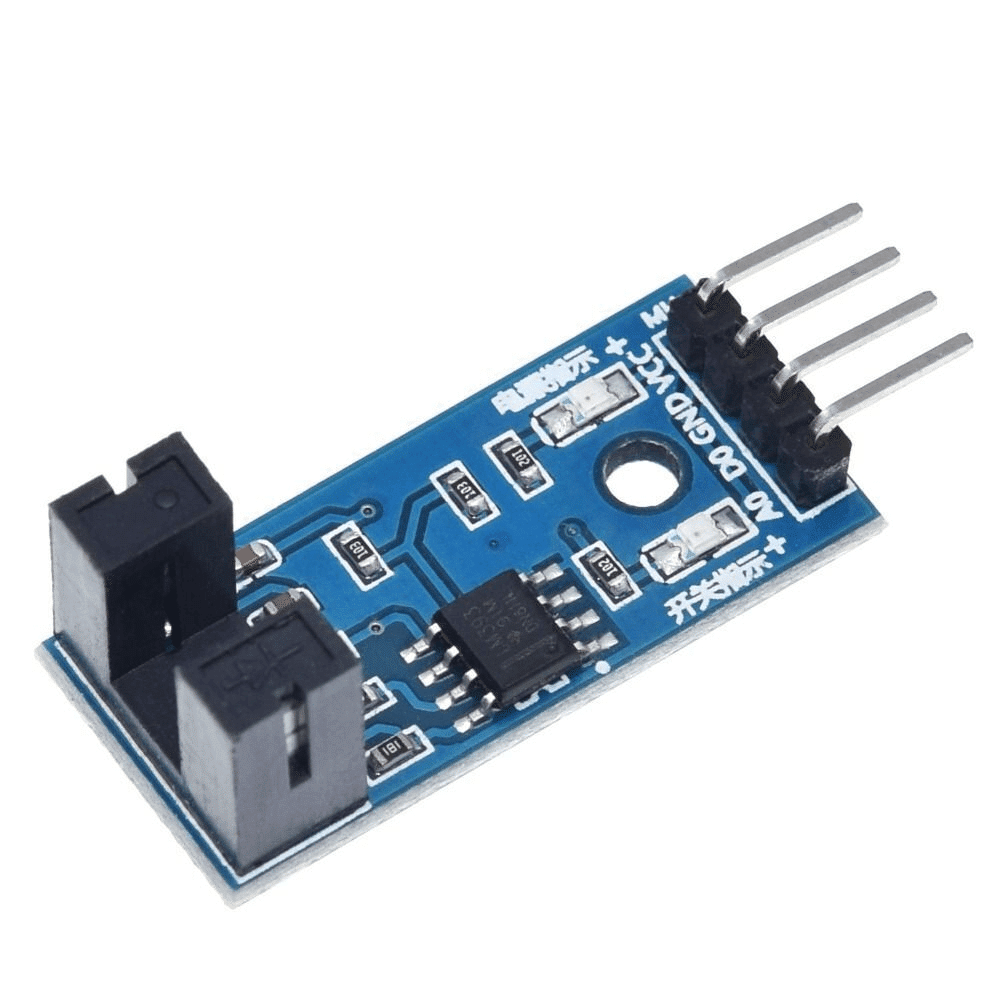
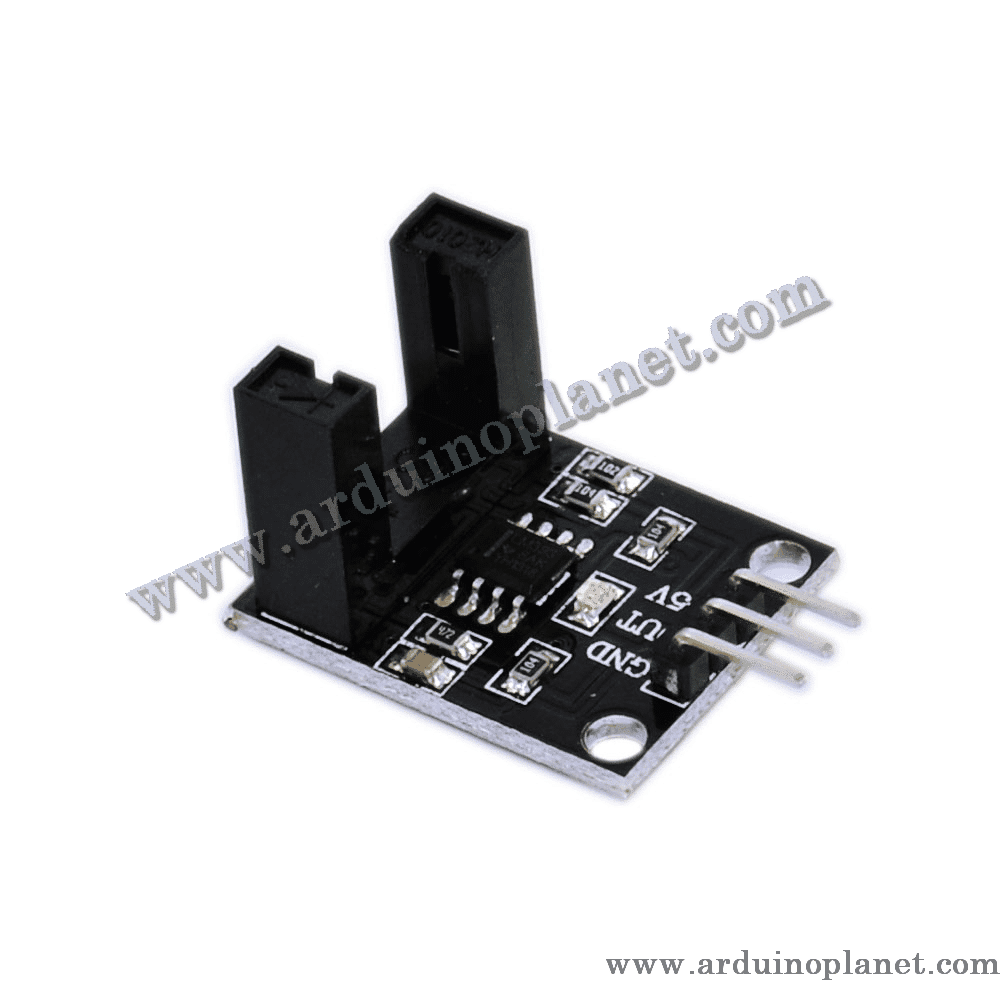
This Arduino speed sensor module measures the rotational speed of a motor or another moving object. It is available in two versions: a 3-pin version with a digital output, and a 4-pin version with both digital and analog outputs.
Detailed specifications
- Supply voltage: 3.3–5 V
- Digital output: 0 or 1
- Analog output: Voltage proportional to speed (4-pin version only)
- Maximum output current: 15 mA
- Operating temperature: 0°C to +80°C
- Sensor type: Infrared (IR) or Hall effect, depending on the model
How it works
The module uses either an infrared sensor or a Hall-effect sensor to detect interruptions caused by a rotating disc or a magnet. Each interruption is counted to determine rotational speed (RPM).
Applications
- Motor speed measurement
- Robotics projects
- Bicycle speedometers
- Industrial monitoring systems
- DIY projects
Pinout (3-pin version)
- VCC: Power supply (3.3–5 V)
- GND: Ground
- DO: Digital output
Pinout (4-pin version)
- VCC: Power supply (3.3–5 V)
- GND: Ground
- DO: Digital output
- AO: Analog output
How to use it
Connect the VCC and GND pins to the Arduino power supply. Connect DO to an Arduino digital input. On the 4-pin version, AO can be connected to an analog input to obtain a speed-proportional reading.
Using it with an Arduino Uno
Basic Arduino code example (3-pin version)
const int sensorPin = 2;
volatile int pulseCount = 0;


void setup() {
  Serial.begin(9600);
  pinMode(sensorPin, INPUT_PULLUP);
  attachInterrupt(digitalPinToInterrupt(sensorPin), countPulse, RISING);
}


void loop() {
  Serial.print("Pulses: ");
  Serial.println(pulseCount);
  delay(1000);
}


void countPulse() {
  pulseCount++;
}
What the code does
This code counts pulses from the speed sensor and displays the pulse count in the serial monitor.
Components required for the basic example
- Arduino Uno
- Speed sensor module (3-pin version)
- Connecting wires
Basic code explained
- Initialization: Serial communication is started and the sensor is configured as an input with the internal pull-up resistor enabled.
- Pulse counter: An interrupt is attached to count each pulse detected by the sensor.
- Displaying data: The pulse count is displayed in the serial monitor every second.
Basic wiring
- VCC: 5 V (Arduino)
- GND: GND (Arduino)
- DO: D2 (Arduino)
Advanced Arduino code example (4-pin version)
#include <Wire.h>
#include <LiquidCrystal_I2C.h>


LiquidCrystal_I2C lcd(0x27, 16, 2);
const int sensorPin = 2;
const int analogPin = A0;
volatile int pulseCount = 0;
int analogValue = 0;


void setup() {
  lcd.begin();
  lcd.backlight();
  Serial.begin(9600);
  pinMode(sensorPin, INPUT_PULLUP);
  attachInterrupt(digitalPinToInterrupt(sensorPin), countPulse, RISING);
}


void loop() {
  analogValue = analogRead(analogPin);
  lcd.setCursor(0, 0);
  lcd.print("Pulses: ");
  lcd.print(pulseCount);
  lcd.setCursor(0, 1);
  lcd.print("Speed: ");
  lcd.print(analogValue);
  delay(1000);
}


void countPulse() {
  pulseCount++;
}
What the code does
This code counts speed-sensor pulses and displays both the pulse count and analog speed reading on an I2C LCD.
Components required for the advanced example
- Arduino Uno
- Speed sensor module (4-pin version)
- 1602 I2C LCD
- Connecting wires
Advanced code explained
- Including libraries:
#include <Wire.h>and#include <LiquidCrystal_I2C.h>add the library required for the LCD. - Initialization: Set up communication with the LCD and initialize the sensor pins.
- Reading and displaying data: Pulses and the analog speed value are read and displayed on the LCD.
Advanced wiring
- VCC: 5 V (Arduino)
- GND: GND (Arduino)
- DO: D2 (Arduino)
- AO: A0 (Arduino)
- VCC (LCD): 5 V (Arduino)
- GND (LCD): GND (Arduino)
- SCL (LCD): A5 (Arduino)
- SDA (LCD): A4 (Arduino)
Installing the driver/library
To use the speed sensor and LCD with Arduino, install the LiquidCrystal I2C library through the Arduino IDE:
- Open the Arduino IDE: Make sure you are using the latest version.
- Open the Library Manager: Choose Sketch → Include Library → Manage Libraries.
- Search for “LiquidCrystal I2C”: Use the search box to find the library.
- Install the library: Click Install to add it to your IDE.
Keywords: speed, counter, optical, speed sensor, RPM, Arduino.