Description
Rotary Encoder
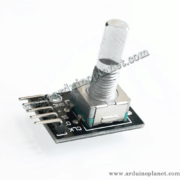
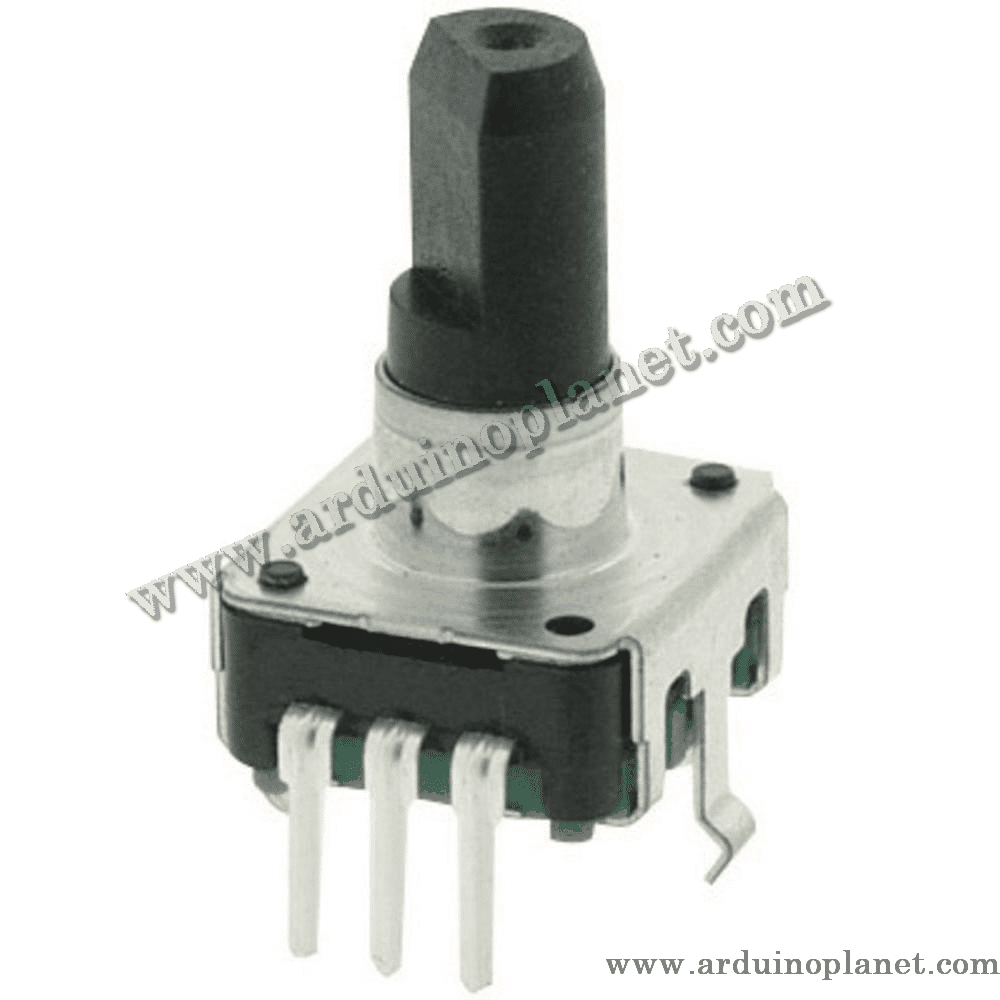
This listing describes a KY-040 electromechanical incremental rotary encoder. Its quadrature outputs allow a controller to detect relative rotation and direction. An integrated push switch can be used for selection or confirmation.
🔧 Listed specifications
- Supply: 5 V DC as stated in the listing
- Type: incremental rotary encoder with quadrature signals
- Resolution: multiple pulses per revolution; no exact count is given
- Integrated normally-open (N.O.) push switch
- Compact form for control panels and robotics projects
⚙️ How it works
As the shaft turns, the CLK and DT signals change state in sequence. Comparing them indicates direction; counting transitions provides relative movement. Press the shaft to operate the SW switch.
💡 Applications
- Rotary user-interface controls
- Relative motor-speed adjustment
- Robot navigation
- Interactive interfaces
- DIY electronics projects
📌 Pinout
- GND: ground
- VCC: supply (5 V as listed)
- SW: push-switch output (N.O.)
- DT: quadrature output B
- CLK: quadrature output A
🔌 Using it with an Arduino Uno
Connect GND and VCC to Arduino ground and a compatible supply. Connect DT and CLK to digital inputs to read rotation, and SW to a digital input to detect a press. The examples below are retained from the source listing; debouncing may be needed for stable readings.
Basic Arduino example
#define CLK 4
#define DT 3
#define SW 2


int counter = 0;
int currentStateCLK;
int lastStateCLK;
String currentDir = "";


void setup() {
  Serial.begin(9600);
  pinMode(CLK, INPUT);
  pinMode(DT, INPUT);
  pinMode(SW, INPUT_PULLUP);
  lastStateCLK = digitalRead(CLK);
}


void loop() {
  currentStateCLK = digitalRead(CLK);
  if (currentStateCLK != lastStateCLK) {
    if (digitalRead(DT) != currentStateCLK) {
      counter--;
      currentDir = "CCW";
    } else {
      counter++;
      currentDir = "CW";
    }
    Serial.print("Direction: ");
    Serial.print(currentDir);
    Serial.print(" | Counter: ");
    Serial.println(counter);
  }
  lastStateCLK = currentStateCLK;


  int buttonState = digitalRead(SW);
  if (buttonState == LOW) {
    Serial.println("Button Pressed");
  } else {
    Serial.println("Button Released");
  }
  delay(50);
}
The sketch reads rotation direction and count and reports whether the push switch is pressed in the Serial Monitor.
Advanced example with an I2C LCD
#define CLK 4
#define DT 3
#define SW 2


int counter = 0;
int currentStateCLK;
int lastStateCLK;
String currentDir = "";


void setup() {
  Serial.begin(9600);
  pinMode(CLK, INPUT);
  pinMode(DT, INPUT);
  pinMode(SW, INPUT_PULLUP);
  lastStateCLK = digitalRead(CLK);
}


void loop() {
  currentStateCLK = digitalRead(CLK);
  if (currentStateCLK!= lastStateCLK) {
    if (digitalRead(DT)!= currentStateCLK) {
      counter--;
      currentDir = "CCW";
    } else {
      counter++;
      currentDir = "CW";
    }
    Serial.print("Direction: ");
    Serial.print(currentDir);
    Serial.print(" | Counter: ");
    Serial.println(counter);
  }
  lastStateCLK = currentStateCLK;


  int buttonState = digitalRead(SW);
  if (buttonState == LOW) {
    Serial.println("Button Pressed");
  } else {
    Serial.println("Button Released");
  }
  delay(50);
}
This example displays relative position and direction on an I2C LCD and reports the push-switch state.
Components
- Arduino Uno
- KY-040 rotary encoder module
- I2C 1602 LCD
- Connecting wires
Code overview
- Include libraries:
#include <Wire.h>and#include <LiquidCrystal_I2C.h>for the LCD. - Initialization: Starts serial communication, initializes the LCD, and configures the encoder pins.
- Read and display: Reads encoder signals and shows direction and relative count on the LCD and in the Serial Monitor.
Advanced wiring
- VCC: 5V (Arduino)
- GND: GND (Arduino)
- CLK: D4 (Arduino)
- DT: D3 (Arduino)
- SW: D2 (Arduino)
- LCD VCC: 5V (Arduino)
- LCD GND: GND (Arduino)
- LCD SCL: A5 (Arduino Uno)
- LCD SDA: A4 (Arduino Uno)
Library installation
Install the LiquidCrystal I2C library through Arduino IDE’s Library Manager: open Sketch → Include Library → Manage Libraries, search for “LiquidCrystal I2C”, and install it.
Check the pin labels before connecting the module. The exact pulse count is not provided in the source listing.