Description
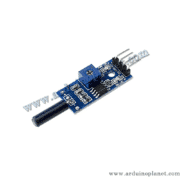
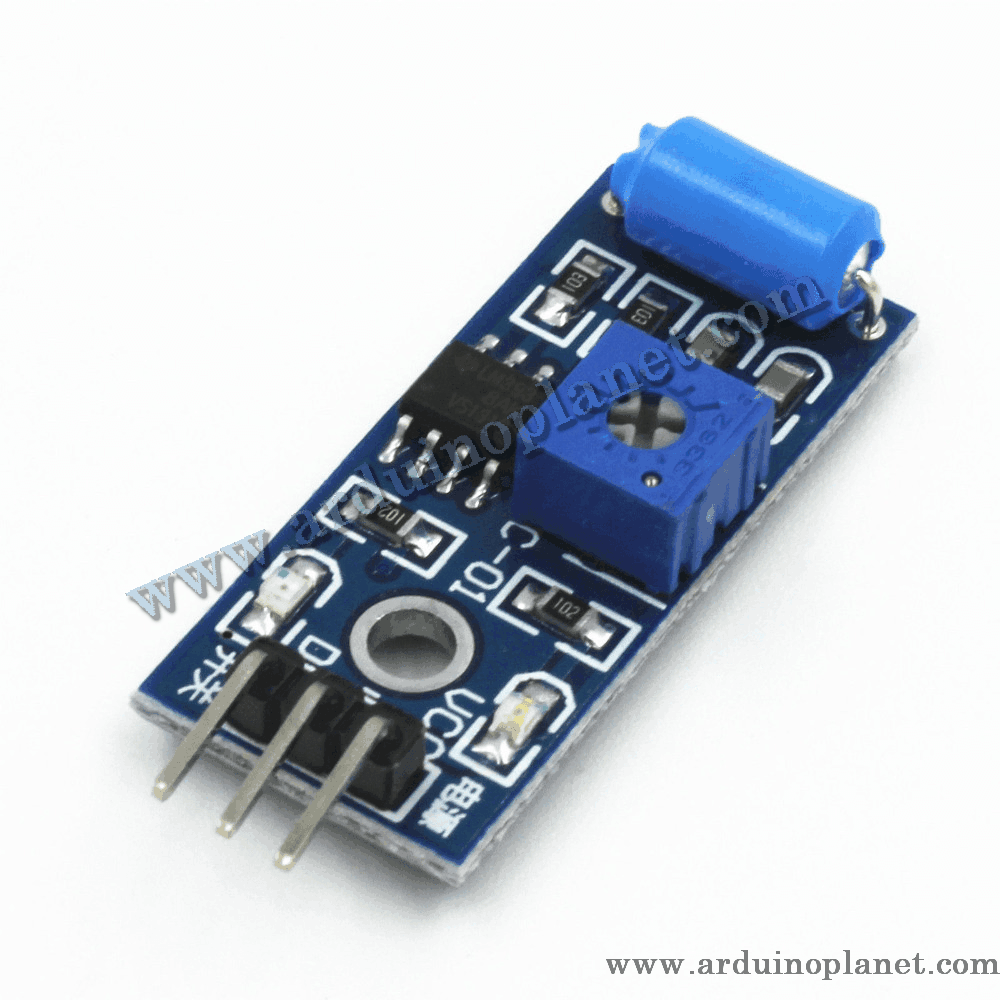
SW-420 Vibration Sensor Module
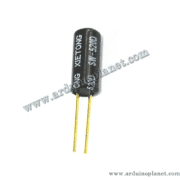
The SW-420 vibration sensor module detects vibration using a spring switch that closes the circuit when vibration occurs. The LM393 comparator compares the sensor output voltage with a reference voltage set by the onboard potentiometer. When vibration exceeds the set threshold, the comparator output goes high (1), indicating that vibration has been detected.
Applications
- Earthquake detection
- Anti-theft alarm systems
- Impact detection for smart vehicles
- Machine fault detection
- Vibration-detection projects
Pinout
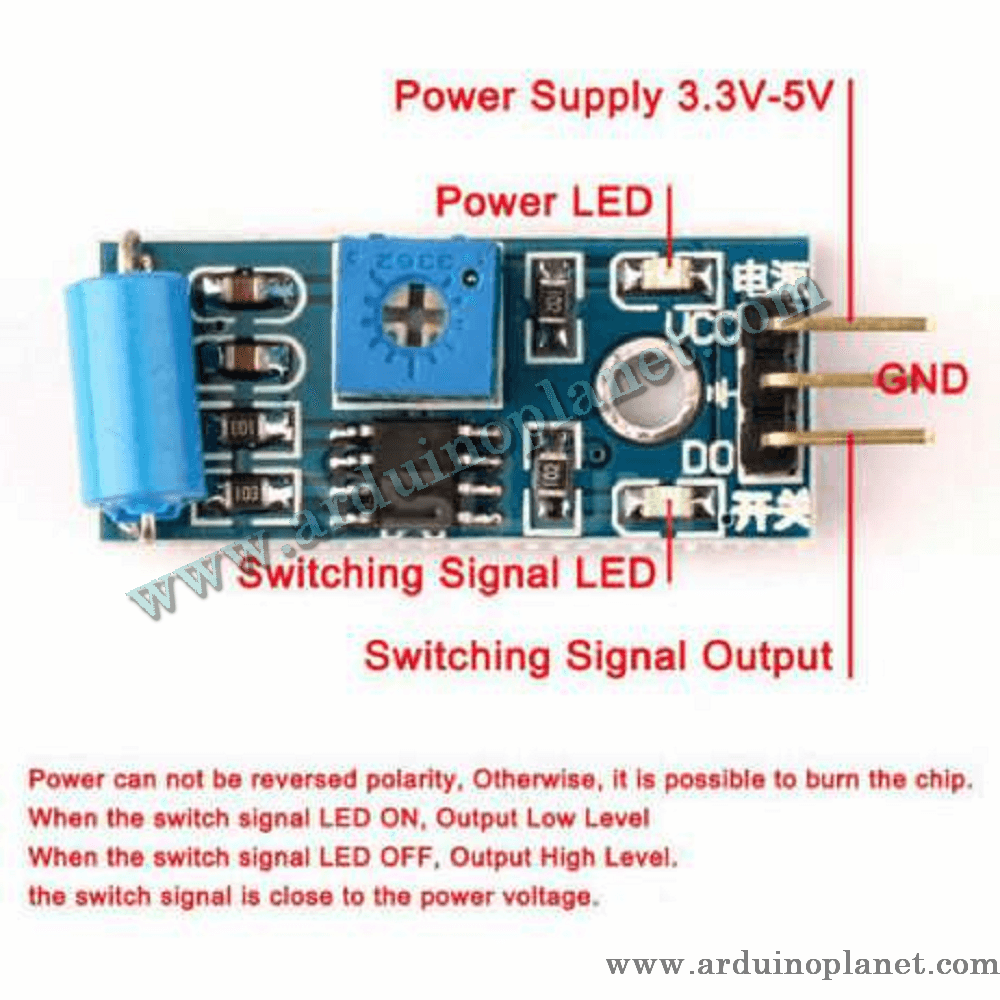
The SW-420 module has three pins:
- VCC: Power supply (3.3–5 V)
- GND: Ground
- DO: Digital output
How to use it
Connect the SW-420 module as follows:
- VCC to 5 V on the Arduino
- GND to GND on the Arduino
- DO to a digital pin (for example, D3) to read the digital values
Using it with an Arduino Uno
Basic Arduino code example
const int ledPin = 13; // LED sur l'Arduino
const int sensorPin = 3; // Interface numérique du capteur de vibration
int sensorState; // Etat du capteur


void setup() {
  pinMode(ledPin, OUTPUT);
  pinMode(sensorPin, INPUT);
  Serial.begin(9600);
}


void loop() {
  // Lecture de l'état du capteur
  sensorState = digitalRead(sensorPin);
  if (sensorState == HIGH) {
    digitalWrite(ledPin, HIGH);
    Serial.println("Vibration détectée");
  } else {
    digitalWrite(ledPin, LOW);
    Serial.println("Pas de vibration");
  }
  delay(100);
}
What the code does: It reads the vibration sensor’s digital output, turns on the Arduino LED when vibration is detected, and displays the status in the serial monitor.
Components required for the basic example
- Arduino Uno
- SW-420 module
- Connecting wires
Basic code explained
- Pin initialization: The LED pin is set as an output and the sensor pin as an input.
- Reading and displaying data: The sensor’s digital value is read and displayed in the serial monitor. The LED turns on when vibration is detected.
Basic wiring
- VCC (SW-420): 5 V (Arduino)
- GND (SW-420): GND (Arduino)
- DO (SW-420): D3 (Arduino)
Advanced Arduino code example
#include <Wire.h>
#include <LiquidCrystal_I2C.h>

LiquidCrystal_I2C lcd(0x27, 16, 2);
const int sensorPin = 3;
int sensorState = 0;

void setup() {
lcd.begin();
lcd.backlight();
Serial.begin(9600);
pinMode(sensorPin, INPUT);
}

void loop() {
sensorState = digitalRead(sensorPin);
if (sensorState == HIGH) {
lcd.setCursor(0, 0);
lcd.print("Vibration detectee");
Serial.println("Vibration détectée");
} else {
lcd.setCursor(0, 0);
lcd.print("Pas de vibration ");
Serial.println("Pas de vibration");
}
delay(100);
}
What the code does: It reads the vibration sensor’s digital output and displays the reading and status on an I2C LCD and in the serial monitor.
Components required for the advanced example
- Arduino Uno
- SW-420 module
- 1602 I2C LCD
- Connecting wires
Advanced code explained
- Including libraries:
#include <Wire.h>and#include <LiquidCrystal_I2C.h>add the libraries required for the LCD. - Initialization: Communication with the LCD is set up in
setup(). - Reading and displaying data: The sensor values are read and shown on the LCD and in the serial monitor. The LCD displays “Vibration detectee” when vibration is detected and “Pas de vibration” when no vibration is detected, as written in the provided code.
Advanced wiring
- VCC (SW-420): 5 V (Arduino)
- GND (SW-420): GND (Arduino)
- DO (SW-420): D3 (Arduino)
- VCC (LCD): 5 V (Arduino)
- GND (LCD): GND (Arduino)
- SCL (LCD): A5 (Arduino)
- SDA (LCD): A4 (Arduino)
Installing the driver/library
To use the SW-420 sensor and LCD with Arduino, install the LiquidCrystal I2C library through the Arduino IDE:
- Open the Arduino IDE: Make sure you are using the latest version.
- Open the Library Manager: From the menu, choose Sketch → Include Library → Manage Libraries.
- Search for “LiquidCrystal I2C”: Use the search box to find the library.
- Install the library: Click Install to add it to your IDE.
Keywords: shock, impact, sensor.