Description
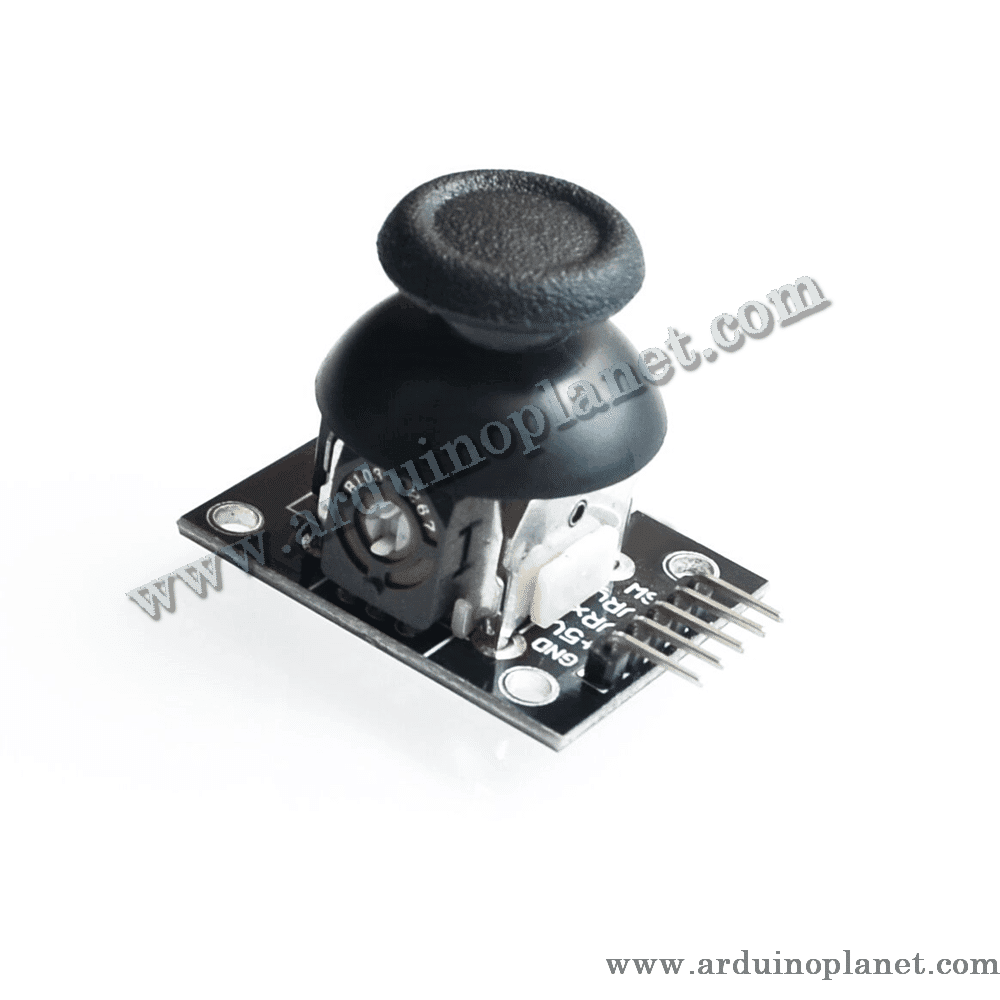
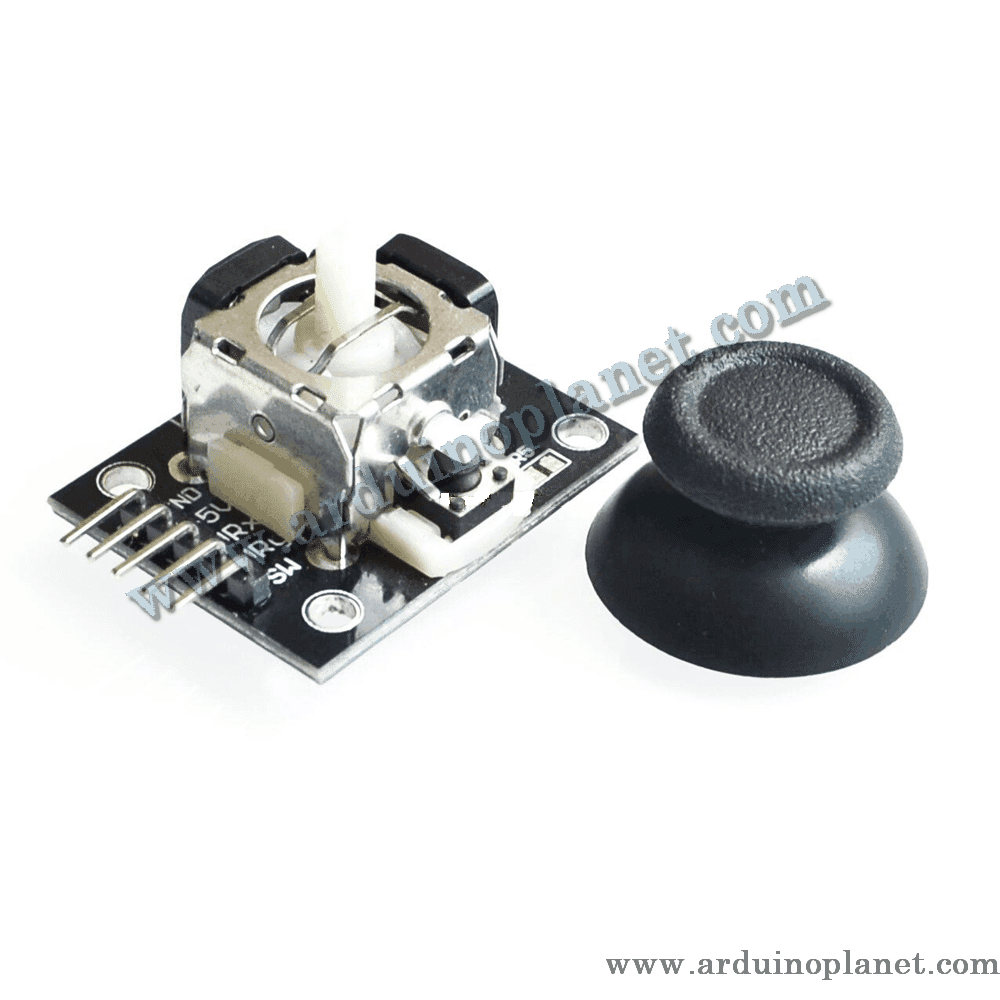
XY Two-Axis Joystick Module
This input module controls movement along the X and Y axes. It is commonly used with Arduino projects such as robotics, games, and interactive interfaces.
🔧 Listed specifications
- Supply: 5 V DC as listed
- Outputs: two analog axis signals (X and Y) and one digital push-button signal
- Dimensions: 34 × 34 × 15 mm
- Sensing elements: potentiometers for the X and Y axes, plus an integrated push button
⚙️ How it works
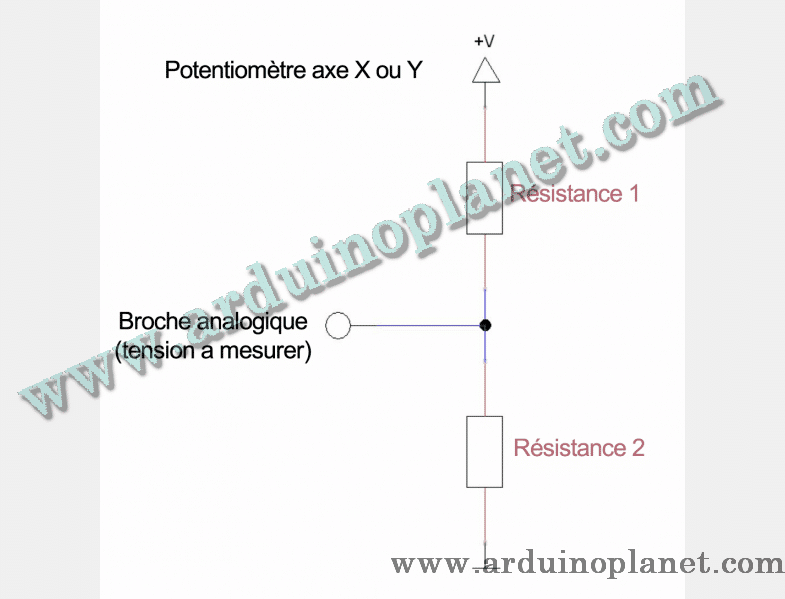
Two potentiometers detect movement along the X and Y axes. Moving the stick changes their resistance and the corresponding analog output voltages. Pressing the stick operates the integrated button.
💡 Applications
- Robot control
- Game interfaces
- Motor control
- Interactive projects
📌 Pinout
- VCC: supply (5 V as listed)
- GND: ground
- VRx: analog output for the X axis
- VRy: analog output for the Y axis
- SW: digital output for the push button
🔌 Using it with an Arduino Uno
Connect VCC and GND to Arduino power and ground. Connect VRx and VRy to analog inputs to read stick position, and connect SW to a digital input to detect presses.
Basic Arduino example
#define VRX_PIN A0
#define VRY_PIN A1
#define SW_PIN 2


void setup() {
  Serial.begin(9600);
  pinMode(SW_PIN, INPUT_PULLUP);
}


void loop() {
  int xValue = analogRead(VRX_PIN);
  int yValue = analogRead(VRY_PIN);
  int buttonState = digitalRead(SW_PIN);


  Serial.print("X-axis: ");
  Serial.print(xValue);
  Serial.print(" | Y-axis: ");
  Serial.print(yValue);
  Serial.print(" | Button: ");
  Serial.println(buttonState);

  delay(100);
}
This sketch reads both analog axes and the button state, then prints the values in the Serial Monitor.
Components for the basic example
- Arduino Uno
- XY two-axis joystick module
- Connecting wires
Code overview
- Initialization: Starts serial communication and configures the joystick button pin.
- Read and display: Reads the analog axis values and button state and prints them in the Serial Monitor.
Basic wiring
- VCC: 5V (Arduino)
- GND: GND (Arduino)
- VRx: A0 (Arduino)
- VRy: A1 (Arduino)
- SW: D2 (Arduino)
Advanced Arduino example with an I2C LCD
#include <Wire.h>
#include <LiquidCrystal_I2C.h>


LiquidCrystal_I2C lcd(0x27, 16, 2);
#define VRX_PIN A0
#define VRY_PIN A1
#define SW_PIN 2


void setup() {
  lcd.begin();
  lcd.backlight();
  Serial.begin(9600);
  pinMode(SW_PIN, INPUT_PULLUP);
}


void loop() {
  int xValue = analogRead(VRX_PIN);
  int yValue = analogRead(VRY_PIN);
  int buttonState = digitalRead(SW_PIN);


  lcd.clear();
  lcd.setCursor(0, 0);
  lcd.print("X: ");
  lcd.print(xValue);
  lcd.setCursor(8, 0);
  lcd.print("Y: ");
  lcd.print(yValue);
  lcd.setCursor(0, 1);
  lcd.print("Button: ");
  lcd.print(buttonState ? "Released" : "Pressed");


  delay(100);
}
This example reads the X/Y axes and button and displays the values on an I2C LCD.
Components for the advanced example
- Arduino Uno
- XY two-axis joystick module
- I2C 1602 LCD
- Connecting wires
Advanced wiring
- VCC: 5V (Arduino)
- GND: GND (Arduino)
- VRx: A0 (Arduino)
- VRy: A1 (Arduino)
- SW: D2 (Arduino)
- LCD VCC: 5V (Arduino)
- LCD GND: GND (Arduino)
- LCD SCL: A5 (Arduino Uno)
- LCD SDA: A4 (Arduino Uno)
Library installation
To use the I2C LCD, install LiquidCrystal I2C through Arduino IDE’s Library Manager: open Sketch → Include Library → Manage Libraries, search for “LiquidCrystal I2C”, and install it.
Check the module pin labels and the voltage limits of the connected board before powering the circuit.