Description
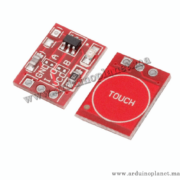
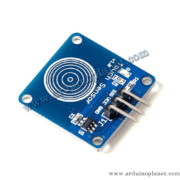
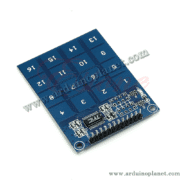
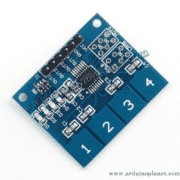
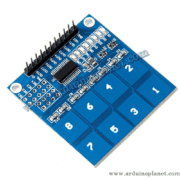
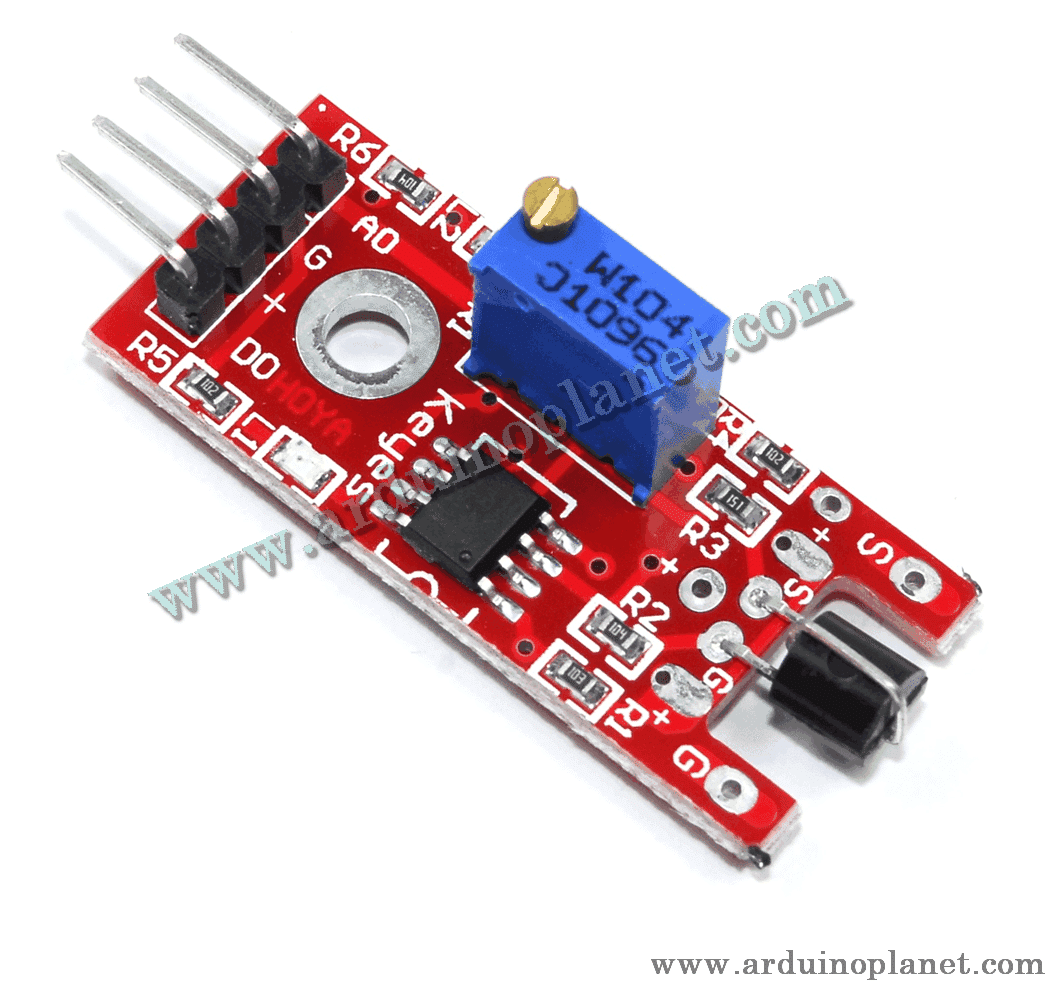
Human Body Touch Sensor Module
This capacitive touch detector module is designed to detect human touch for interactive electronics projects. The specifications below are those stated in the product listing; the exact controller and board revision are not identified.
🔧 Listed specifications
- Supply voltage: 3–5 V
- Digital output (DO): HIGH when touch is detected
- Analog output (AO): described as a voltage proportional to touch level
- Response time: up to 220 ms in low-power mode
- Operating current: typically 1.5 μA in low-power mode; 3.0 μA maximum
Pin/function note: Confirm that your board revision actually provides both AO and DO and check its printed pin labels before wiring. The source listing describes AO as proportional, but the behavior and output type depend on the exact sensor circuitry.
⚙️ How it works
The module uses capacitive sensing. Touch changes the sensed capacitance and can cause the digital output to go HIGH; the source listing also describes an analog output that varies with touch level.
💡 Applications
- Touch switches
- Lighting controls
- Security systems
- Interactive projects
- User interfaces without mechanical buttons
📌 Pinout
- AO: analog output (if provided on your board)
- DO: digital output
- +: supply, 3–5 V as listed
- G: ground (GND)
🔌 Basic Arduino Uno connection
Connect + and G to the appropriate supply and ground. Connect DO to a digital input. Connect AO to an analog input only if that output is present and supported by your module revision.
Arduino example: read the digital output
const int touchPin = 2;
int touchState = 0;

void setup() {
  Serial.begin(9600);
  pinMode(touchPin, INPUT);
}

void loop() {
  touchState = digitalRead(touchPin);
  if (touchState == HIGH) {
    Serial.println("Contact détecté");
  } else {
    Serial.println("Pas de contact");
  }
  delay(100);
}
This sketch reads the sensor’s digital output and displays its state in the Serial Monitor.
Components for the basic example
- Arduino Uno
- Human-body touch detector module
- Connecting wires
Basic example: code overview
- Initialization: Starts serial communication and configures the sensor pin as an input.
- Read and display: Reads the digital sensor output and prints its state.
Basic wiring
- +: 5V (Arduino)
- G: GND (Arduino)
- DO: D2 (Arduino)
Advanced Arduino Uno example with an I2C LCD
This example reads the digital and analog inputs and displays their values on an I2C LCD. Use the analog connection only if AO is available on your board.
#include <Wire.h>
#include <LiquidCrystal_I2C.h>

LiquidCrystal_I2C lcd(0x27, 16, 2);
const int touchPin = 2;
const int analogPin = A0;
int touchState = 0;
int analogValue = 0;

void setup() {
  lcd.begin();
  lcd.backlight();
  Serial.begin(9600);
  pinMode(touchPin, INPUT);
}

void loop() {
  touchState = digitalRead(touchPin);
  analogValue = analogRead(analogPin);
  lcd.setCursor(0, 0);
  lcd.print("Contact: ");
  lcd.print(touchState);
  lcd.setCursor(0, 1);
  lcd.print("Niveau: ");
  lcd.print(analogValue);
  delay(1000);
}
The sketch reads the digital and analog inputs and displays both values on an I2C LCD.
Components for the advanced example
- Arduino Uno
- Human-body touch detector module
- I2C 1602 LCD
- Connecting wires
Advanced example: code overview
- Include libraries:
#include <Wire.h>and#include <LiquidCrystal_I2C.h>for the LCD. - Initialization: Initializes LCD communication and configures the sensor pins.
- Read and display: Reads the digital and analog values and displays them on the LCD.
Advanced wiring
- +: 5V (Arduino)
- G: GND (Arduino)
- DO: D2 (Arduino)
- AO: A0 (Arduino), if supported by the module
- LCD VCC: 5V (Arduino)
- LCD GND: GND (Arduino)
- LCD SCL: A5 (Arduino Uno)
- LCD SDA: A4 (Arduino Uno)
Library installation
To use the I2C LCD with Arduino, install the LiquidCrystal I2C library in Arduino IDE:
- Open Arduino IDE and ensure it is up to date.
- Open the Library Manager from the Sketch → Include Library → Manage Libraries menu.
- Search for “LiquidCrystal I2C”.
- Select and install the library.
Check the pin labels and the exact board behavior before connecting power. Do not assume the AO output exists on every version of this module.