Description
TTP226 8-Key Capacitive Touch Sensor Module
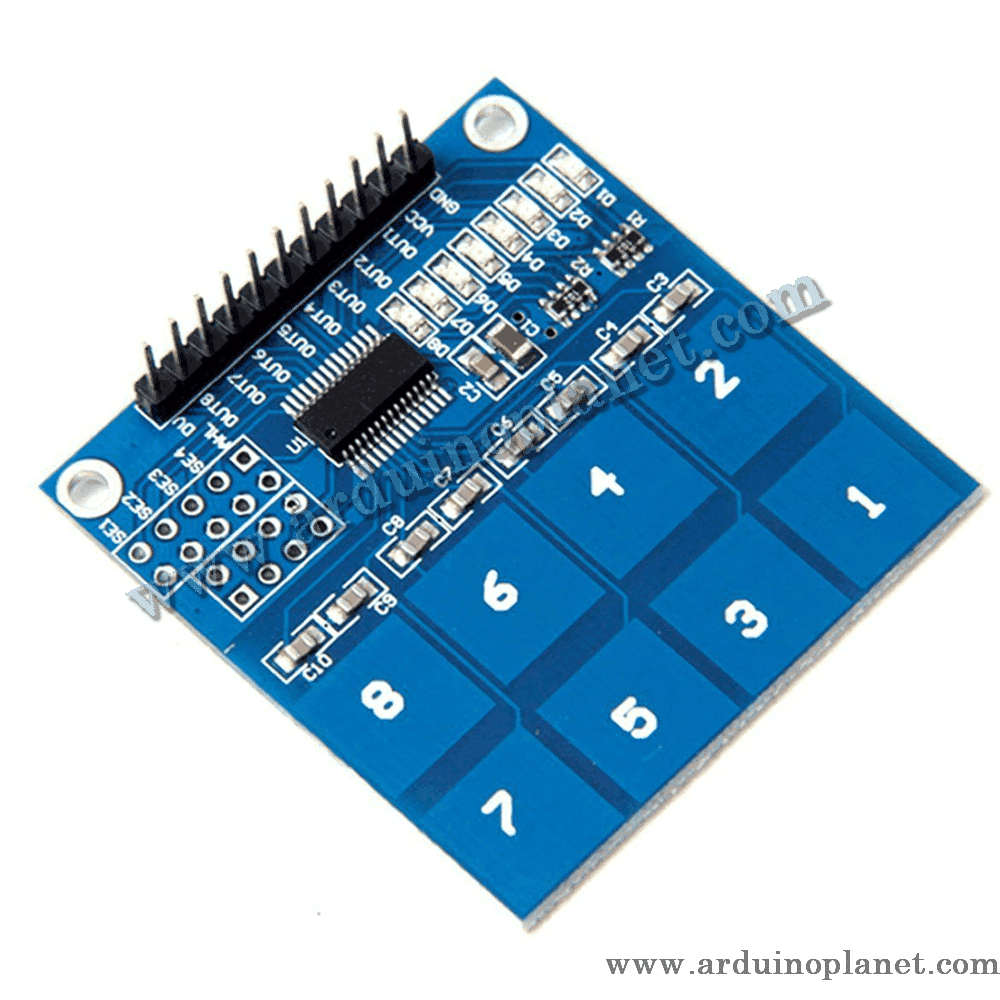
This module uses a TTP226 capacitive touch controller to detect touch at eight sensing pads. It can replace mechanical keys in user interfaces and interactive electronics projects.
🔧 Listed specifications
- Supply voltage: 2.0–5.5 V DC
- Outputs: OUT1–OUT8, one digital output for each touch key in direct-output mode
- Board dimensions: 47.4 × 46 mm
- The listing also gives 60 ms fast-mode and approximately 220 ms low-power response times and describes current as a few μA; confirm these figures for the exact board and IC version before relying on them.
Specification note: The TTP226 manufacturer’s information for the IC lists about 100 μA at 3 V and a power-on/recalibration time below 1 second. This differs from some timing and current figures in the product listing. The module’s exact IC and settings are not identified, so verify its datasheet and board revision.
⚙️ How it works
Touching one of the eight pads changes the capacitance at that electrode. The controller detects the change and provides a corresponding output. Depending on the chip and board options, outputs may use direct, matrix, or serial mode and may be active-high or active-low.
💡 Applications
- Touch switches and control panels
- Lighting controls
- User interfaces
- Interactive electronics projects
- Controls without mechanical buttons
📌 Pinout
- DV: Data Valid (as labelled on the module)
- GND: ground
- VCC: supply, 2.0–5.5 V as listed
- OUT1–OUT8: digital outputs for the eight keys, when the board is configured for direct output
⚙️ Configuration pads
The listing describes the following solder-pad options. Their exact behavior and defaults depend on the module revision. Check the board markings and documentation before altering solder bridges.
- SE1–SE4: touch sensitivity selection
- AHL: selects active-high or active-low output level
- OP0 and OP1: output-mode selection; the listing mentions direct and serial modes
- OSC1 and OSC2: external oscillator configuration, if required by that board
🔌 Using it with an Arduino Uno
Connect VCC and GND to a supply within the verified rating for your module. In direct-output mode, connect OUT1–OUT8 to digital inputs. Confirm the selected output mode, logic polarity, voltage compatibility, and pin labels before wiring.
Basic Arduino example
#define PAD1 2
#define PAD2 3
#define PAD3 4
#define PAD4 5
#define PAD5 6
#define PAD6 7
#define PAD7 8
#define PAD8 9


void setup() {
  Serial.begin(9600);
  pinMode(PAD1, INPUT);
  pinMode(PAD2, INPUT);
  pinMode(PAD3, INPUT);
  pinMode(PAD4, INPUT);
  pinMode(PAD5, INPUT);
  pinMode(PAD6, INPUT);
  pinMode(PAD7, INPUT);
  pinMode(PAD8, INPUT);
}


void loop() {
  if (digitalRead(PAD1) == HIGH) {
    Serial.println("PAD1 touch detected");
  }
  if (digitalRead(PAD2) == HIGH) {
    Serial.println("PAD2 touch detected");
  }
  if (digitalRead(PAD3) == HIGH) {
    Serial.println("PAD3 touch detected");
  }
  if (digitalRead(PAD4) == HIGH) {
    Serial.println("PAD4 touch detected");
  }
  if (digitalRead(PAD5) == HIGH) {
    Serial.println("PAD5 touch detected");
  }
  if (digitalRead(PAD6) == HIGH) {
    Serial.println("PAD6 touch detected");
  }
  if (digitalRead(PAD7) == HIGH) {
    Serial.println("PAD7 touch detected");
  }
  if (digitalRead(PAD8) == HIGH) {
    Serial.println("PAD8 touch detected");
  }
  delay(100);
}
This example reads the eight digital outputs and reports active touch pads in the Serial Monitor.
Basic wiring
- VCC: 5V (Arduino), only if supported by the exact board
- GND: GND (Arduino)
- OUT1–OUT8: D2–D9 (Arduino), in direct-output mode
Advanced example with an I2C LCD
#include <Wire.h>
#include <LiquidCrystal_I2C.h>


LiquidCrystal_I2C lcd(0x27, 16, 2);
#define PAD1 2
#define PAD2 3
#define PAD3 4
#define PAD4 5
#define PAD5 6
#define PAD6 7
#define PAD7 8
#define PAD8 9


void setup() {
  lcd.begin();
  lcd.backlight();
  Serial.begin(9600);
  pinMode(PAD1, INPUT);
  pinMode(PAD2, INPUT);
  pinMode(PAD3, INPUT);
  pinMode(PAD4, INPUT);
  pinMode(PAD5, INPUT);
  pinMode(PAD6, INPUT);
  pinMode(PAD7, INPUT);
  pinMode(PAD8, INPUT);
}


void loop() {
  lcd.clear();
  if (digitalRead(PAD1) == HIGH) {
    lcd.print("PAD1 touch detected");
  }
  if (digitalRead(PAD2) == HIGH) {
    lcd.print("PAD2 touch detected");
  }
  if (digitalRead(PAD3) == HIGH) {
    lcd.print("PAD3 touch detected");
  }
  if (digitalRead(PAD4) == HIGH) {
    lcd.print("PAD4 touch detected");
  }
  if (digitalRead(PAD5) == HIGH) {
    lcd.print("PAD5 touch detected");
  }
  if (digitalRead(PAD6) == HIGH) {
    lcd.print("PAD6 touch detected");
  }
  if (digitalRead(PAD7) == HIGH) {
    lcd.print("PAD7 touch detected");
  }
  if (digitalRead(PAD8) == HIGH) {
    lcd.print("PAD8 touch detected");
  }
  delay(1000);
}
This example reads the eight touch outputs and displays detected pads on an I2C LCD.
Components for the advanced example
- Arduino Uno
- TTP226 capacitive touch module
- I2C 1602 LCD
- Connecting wires
Code overview
- Include libraries:
#include <Wire.h>and#include <LiquidCrystal_I2C.h>for the LCD. - Initialization: Initializes the LCD and configures the touch-output pins.
- Read and display: Reads the key outputs and displays the detected state on the LCD.
LCD example wiring
- VCC: 5V (Arduino), only if supported by the exact board
- GND: GND (Arduino)
- OUT1–OUT8: D2–D9 (Arduino), in direct-output mode
- LCD VCC: 5V (Arduino)
- LCD GND: GND (Arduino)
- LCD SCL: A5 (Arduino Uno)
- LCD SDA: A4 (Arduino Uno)
Library installation
To use the I2C LCD with Arduino, install the LiquidCrystal I2C library in Arduino IDE:
- Open Arduino IDE and ensure it is up to date.
- Open Library Manager from Sketch → Include Library → Manage Libraries.
- Search for “LiquidCrystal I2C”.
- Select and install the library.
Disconnect power before changing solder pads or wiring. A matrix or serial configuration will not use the outputs as shown in the direct-mode examples; follow the exact module documentation.